
Import custom voices from ElevenLabs on the Melius Creator plan and
above. Compare plans.
Create an API key
1
Open the ElevenLabs API keys page
Go to elevenlabs.io/app/api/api-keys and sign in to your ElevenLabs account.
2
Create a new key
Click Create API Key. Give it a descriptive name (e.g. “Melius”).
3
Enable Restrict Key
Toggle Restrict Key on so you can scope the key to only the permissions Melius needs.
4
Set permissions
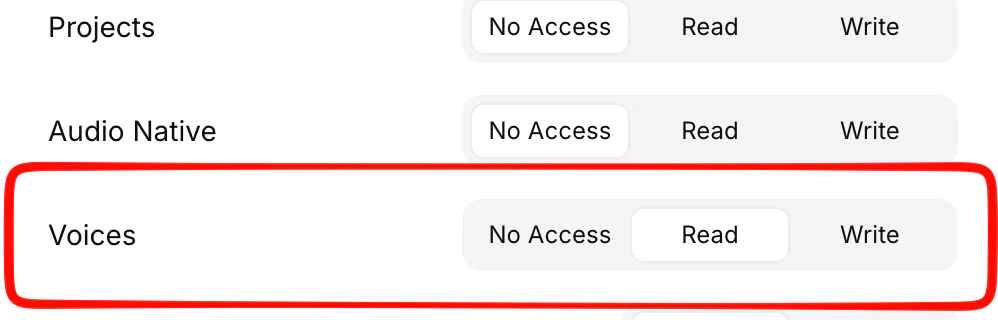
Under Endpoints, grant Access to each of the following: Text to Speech, Speech to Speech, Speech to Text, Sound Effects, Audio Isolation, and Music Generation.Under the resource permissions, set Voices to Read. This allows Melius to list and use your custom voices.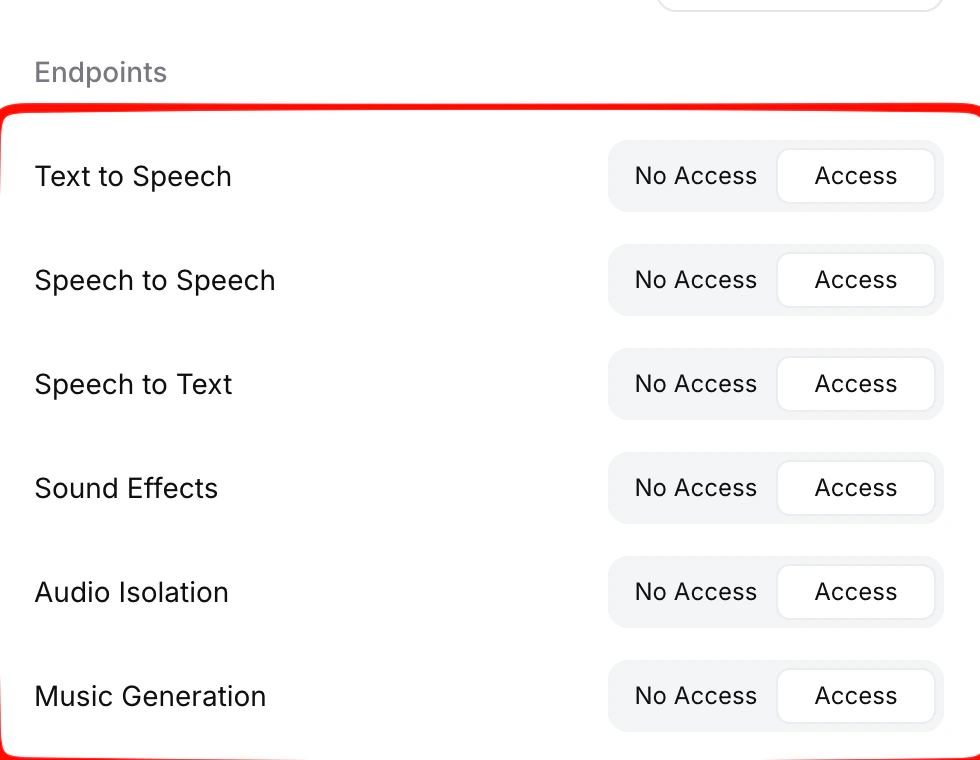
5
Save and copy the key
Click Save Changes, then copy the API key. You will not be able to see it again.
Add the key to Melius
1
Open Settings
In Melius, go to Settings.
2
Enter your API key
Paste the ElevenLabs API key into the ElevenLabs API Key field and
save.